
Chapter 6 · 6.2
Layouts and themes
The layout of a slide
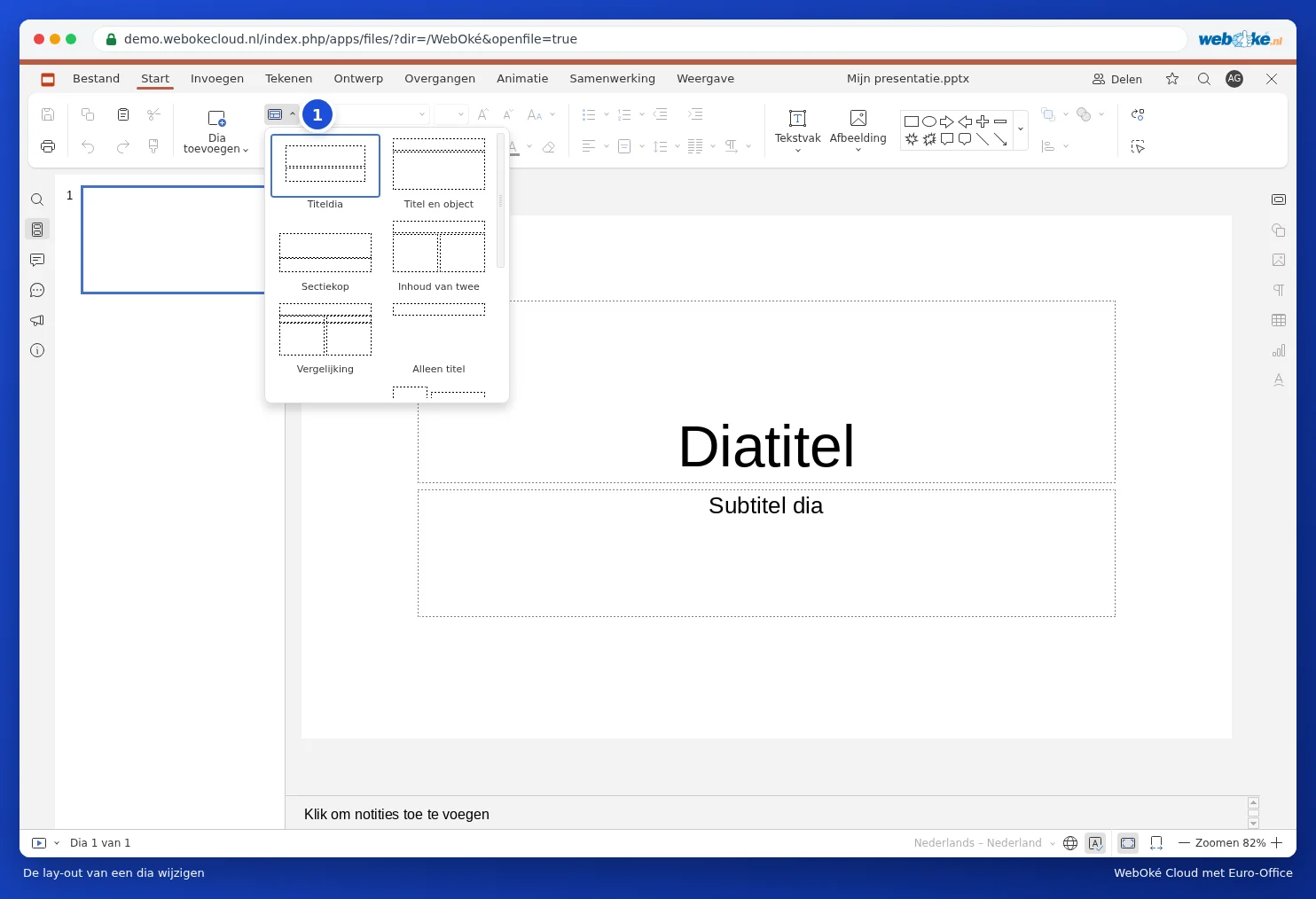
A layout determines which placeholders appear on a slide: just a title, a title with text, two columns, a comparison, or a blank slide. On the Home tab, click Change slide layout (1) and choose a different layout. Any text already there stays in place.
Choosing a theme
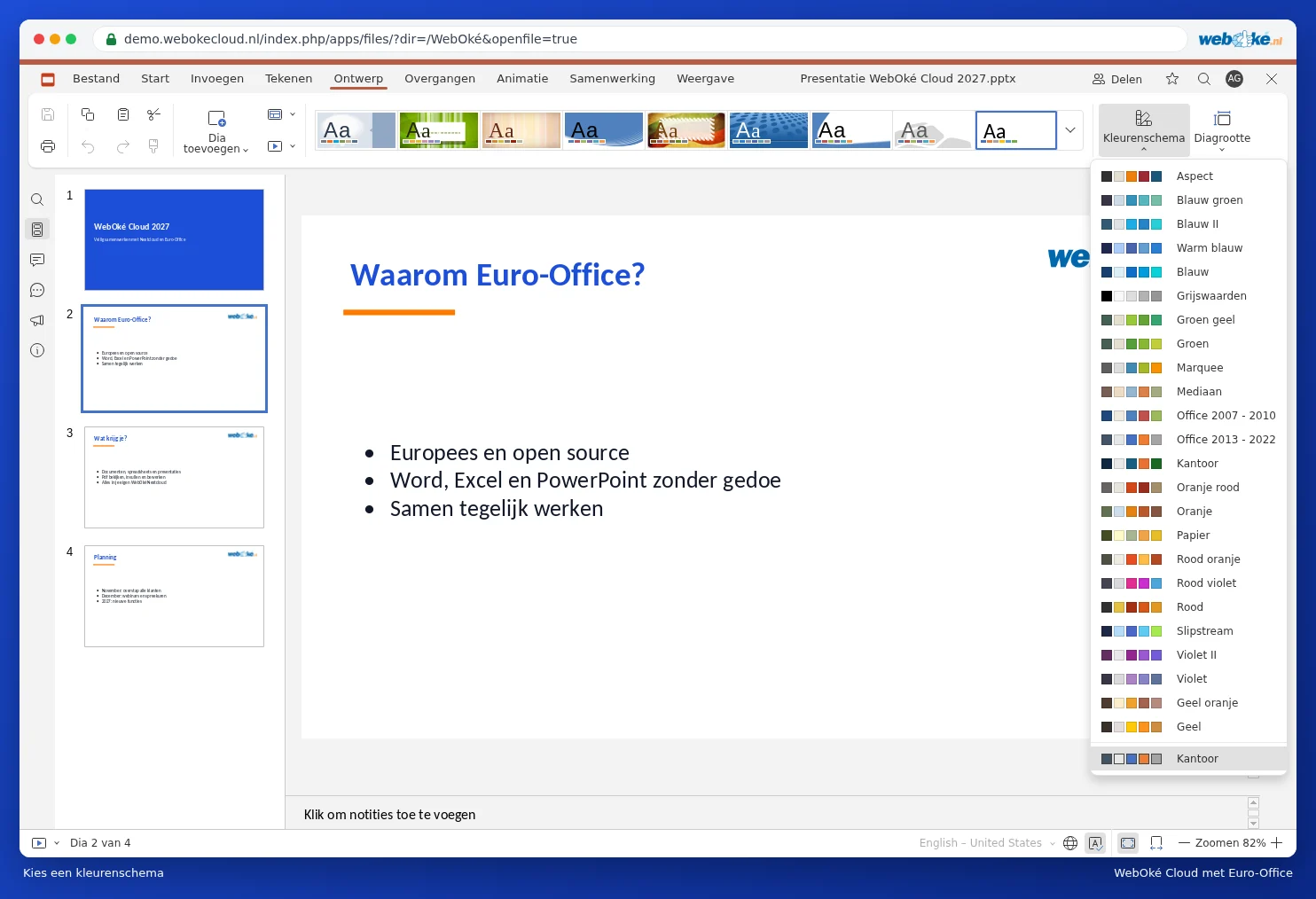
A theme gives your whole presentation the same background, colours and fonts in one go. Go to the Design tab and click a theme (1).

With Colors (2) you can choose different colours for the same theme. With Slide size (3) you can choose between Widescreen (16:9), the format used by modern screens and projectors, and Standard (4:3).
The background of a slide
Click an empty spot on the slide. On the right, in the Slide settings, choose a background colour, a gradient, or an image. Click Apply to All Slides to give all slides the same background.
Your own house style in the slide master
Want your logo on every slide, or fixed fonts and colours for your whole organisation? Go to the View tab and click Slide Master. An extra Slide Master tab appears. Whatever you change on the top slide (the master slide) applies to every slide; whatever you change on a layout below it applies only to slides with that layout. You can find an example in Het logo in één keer op alle dia's zetten. Click Close Master to go back.
Tip: save a presentation with your house style in a Templates folder in your Nextcloud. For a new presentation, open it and choose File and Save Copy As. Want to switch from 4:3 to widescreen? Read Een oude 4:3-presentatie omzetten naar breedbeeld 16:9.