
Chapter 6 · 6.7
The Set up email card (MX, SPF, DKIM, DMARC)
If you want your email to arrive properly and not end up in spam, a few DNS records for your domain need to be correct. At the bottom of your package's product page, you'll find the Set up email card. It checks live whether everything is set correctly and gives you exactly the records you need.

What do you see?
- At the top right, you'll see how many records are correct (1). Use the arrow next to it to expand or collapse the details.
- For each record, you'll see what it does, the Name/Host and the Value. Use the copy button (2) to copy the value, so you avoid typing mistakes.
- On the right of each record is its status: Correct, Please note, Incorrect or Not found. Use the circular arrow icon (3) to check just that one record again.
The records
| Record | Type | What's it for? |
|---|---|---|
| MX | MX | Makes sure incoming email is delivered to our mail server. |
| A (mail) | A | Points mail.yourdomain to our mail server, for webmail and your email program. |
| SPF | TXT | Tells receiving servers that our mail server may send on behalf of your domain. |
| DKIM | TXT | The digital signature on your outgoing email. |
| DMARC | TXT | The policy that tells recipients what to do with email that fails the checks. |
Does your domain use our nameservers?
Then you don't need to do anything. We set up all the email records automatically, and the card will show that your email DNS is fully in order.
Is your domain's DNS managed by another provider? Then you'll see this at the top of the card. In that case, add the records with that provider: copy the name and value for each record using the copy buttons. If there's an MX record from another mail server listed, remove it if all your mail should go through us.
Is your domain with us, but managed under DNS management at WebOké? Then you can also set the records with a single click, see Set up email quickly in the DNS.
Checking again
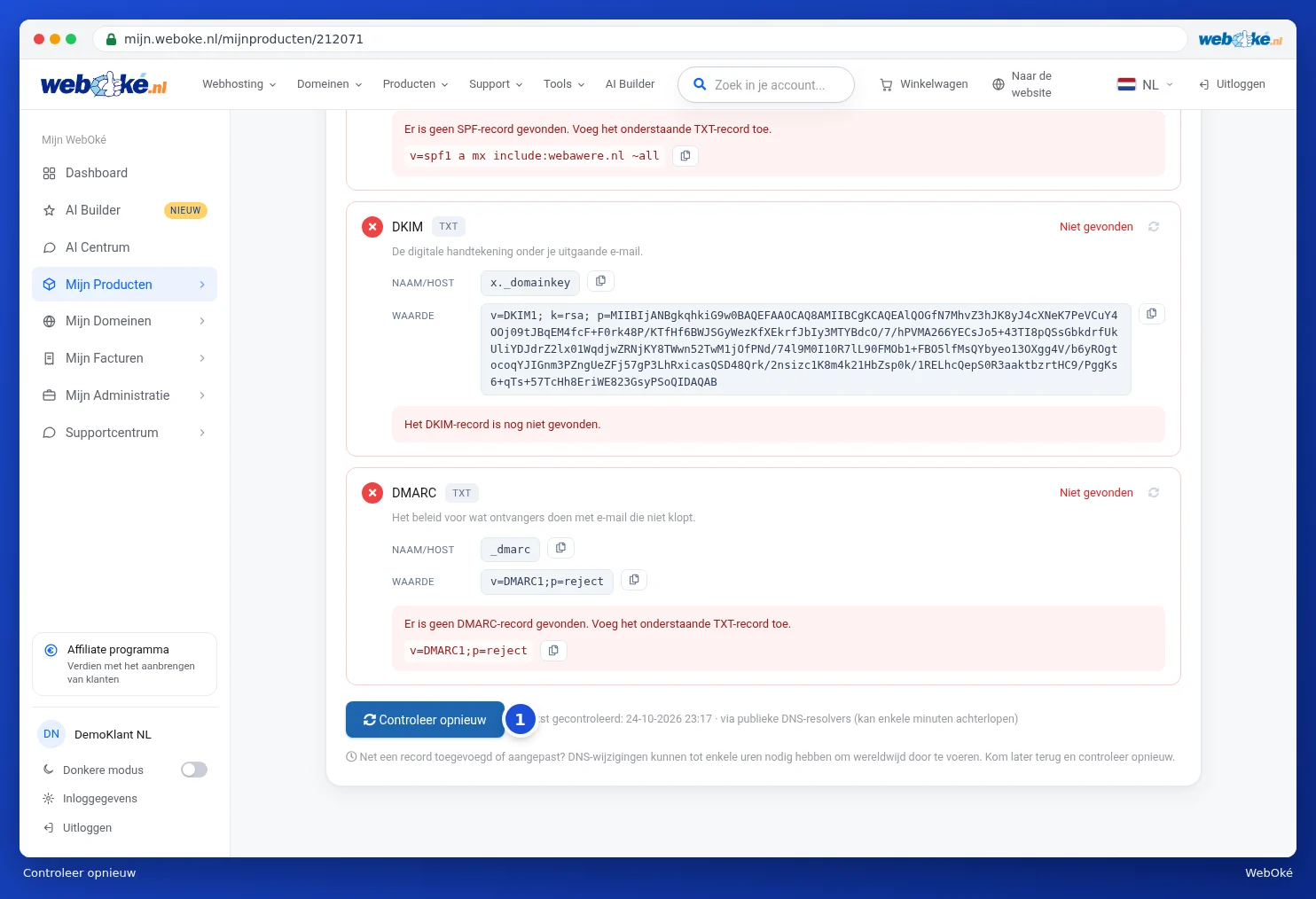
If you've made a change, click Check again (1) at the bottom. Next to it, you'll see when the last check took place. We check via public DNS servers, so a change may take a few minutes to several hours before we see it. If you don't see your change yet, come back later.
Tip: a more detailed check of your domain and your email, with repair buttons, can be found in Domain and email health: checking and fixing. Isn't your email arriving? Read Mail not arriving: check it yourself.