
Chapter 11 · 11.2
Uploading and downloading files
Watch it in a short video
A few files or a small website is quickest to set up using File Manager on your package. Do you have lots of files, such as a complete website with hundreds of images? Then pack them into a single zip file first and unpack it on the server (see Extracting and creating zip files), or use FTP (see Verbinden met FileZilla (FTP, FTPS en SFTP)).
Uploading
- Open File Manager (see Opening File Manager: the directories in your package).
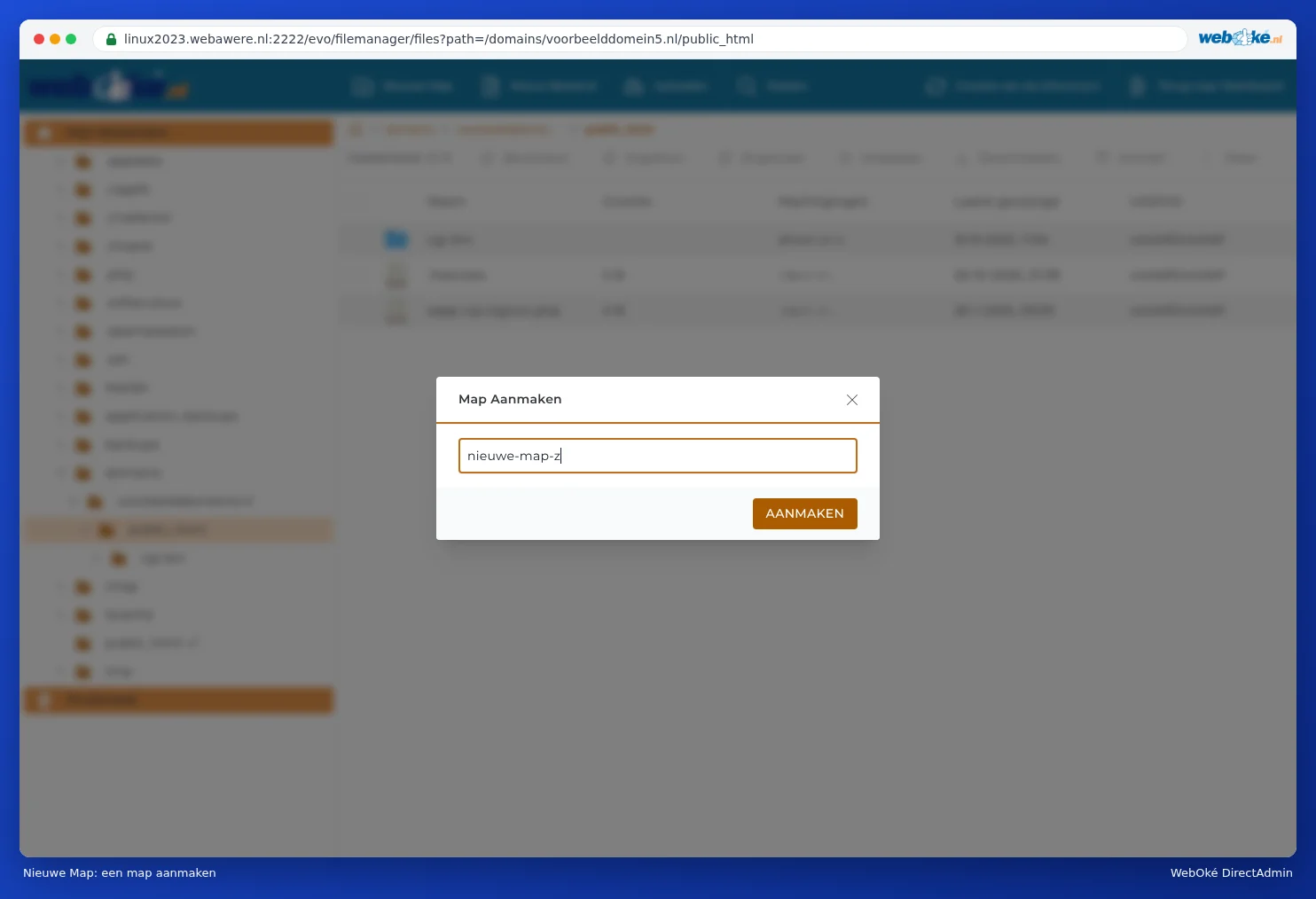
- Go to the directory where the files need to go. For your website, that's domains/yourdomain.nl/public_html. If you want your own directory first, click New Folder, type a name and click CREATE.
- Click Upload at the top.
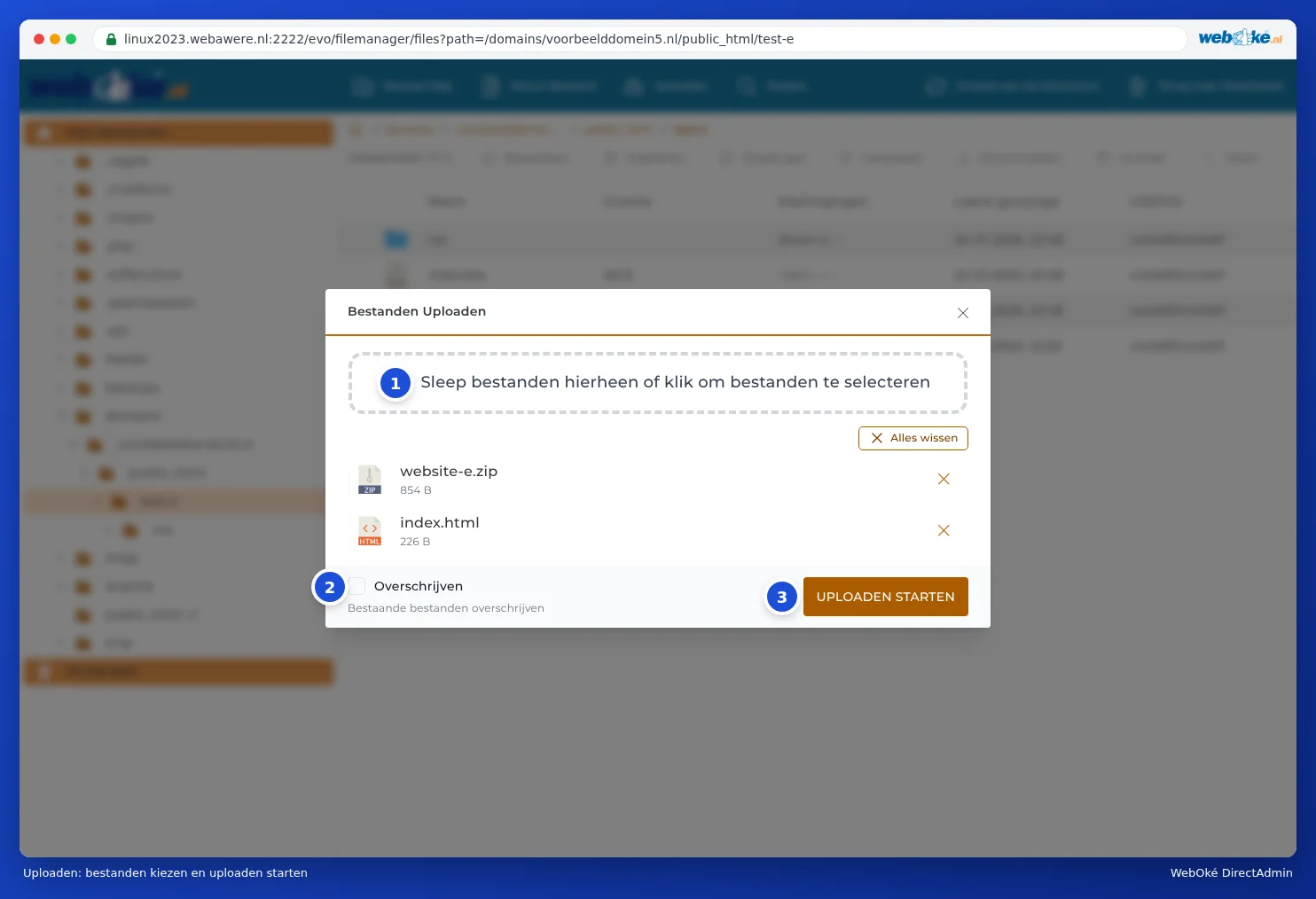
- Drag your files into the Upload Files window (1), or click in the box to choose them from your computer. You can choose multiple files at once.
- If you want to replace existing files with the same name, switch on Overwrite (2). If it's switched off, File Manager skips files that already exist.
- Click START UPLOAD (3). When everything's done, click DONE.
Downloading
- Tick the file, or right-click on it.
- Click Download. The file ends up in your computer's downloads folder.
Want to download a whole directory in one go? First turn it into a zip file with Archive (see Extracting and creating zip files) and download that zip file. Then delete the zip file again, otherwise it takes up space.
Creating or editing a file
Use New File to create an empty file, such as index.html or .htaccess. To edit a file, right-click on it and choose Modify. You'll then get a text editor in your browser. Click Save when you're done. More on this in Showing and editing hidden files such as .htaccess.
Good to know
- Names without spaces. In file names, preferably use lowercase letters, numbers and a hyphen. On the server, Photo.JPG is a different file from photo.jpg.
- Very large files, such as a video or a backup of more than a few hundred MB, are better uploaded with FTP. An upload in the browser breaks off if your connection drops out for a moment.
- Your storage space counts. If your package is full, the upload will fail. You can see how much space you're using on the dashboard (see Tour: the dashboard and your limits and Storage full: where's the space going?).
- Imunify360 keeps an eye on things. Files that look like malware are blocked when uploading (see Imunify360: scanning your website for malware).
Tip: Using WordPress? Upload photos through WordPress itself (Media). That way, WordPress immediately creates the smaller versions for your pages. Files you place in the upload directory via File Manager won't show up in the media library in WordPress.