
Force redirect visitors to https
Do you have an SSL certificate on your website? Then you'll want all visitors to end up on the secure https version, not on http anymore. Below you'll read how to set that up, and what to do if your site stops working afterwards or after a move.
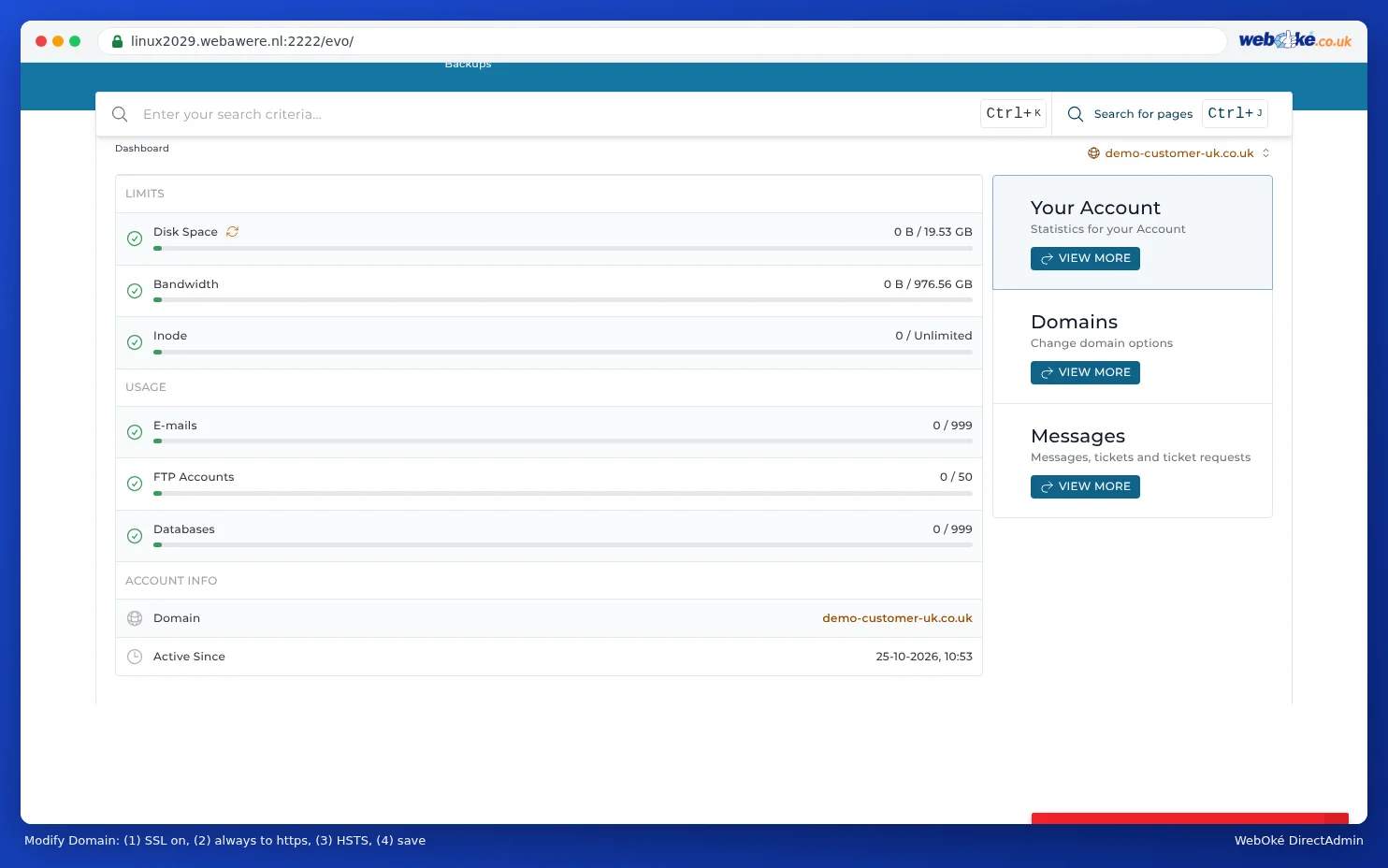
In DirectAdmin
- Log in to DirectAdmin: in My WebOké go to My Products and click DirectAdmin next to your hosting package.
- Under Account Manager, click Domain Setup and click your domain name.
- Check whether Secure SSL Connection is turned on. Only then will you see the options below.
- Under SSL, turn on the toggle Force SSL with https redirect.
- Click Edit to save.
There's also an option for Enable HTTP Strict Transport Security (HSTS). Only turn that on if your certificate works for all names: browsers remember HSTS for a long time, and if the certificate doesn't work later on, visitors won't be able to open your site anymore. If in doubt, leave HSTS off.
On the same page, you choose under Force Redirect whether visitors always go to the address with www or without www.
Or in your website
Many programs can do it themselves. In WordPress, go to Settings › General and set the WordPress address and the site address to https://. Only use one redirect: not in DirectAdmin and in a plugin or in .htaccess at the same time. Otherwise your website could keep redirecting in a loop.
Does your site stop working after https or a move?
Go through these steps in order:
- First try a private window or a different browser. Your browser may remember an old page or an old redirect. If it works there, clear your browser's cache.
- Getting a 'too many redirects' or 'page isn't redirecting properly' message? Then two settings are sending each other back and forth. For example, Force SSL and a plugin, a custom rule in
.htaccess, or a different choice for with or without www in DirectAdmin than in WordPress. Turn one of the two off. If you're using Cloudflare's proxy with the SSL mode Flexible, choose Full (strict) there instead. - Certificate error or a certificate in the server's name? After a move or a DNS change, the certificate often hasn't been issued yet. That can only happen once the domain points to our server, and sometimes takes a few hours. Turn off the https redirect in the meantime and request the certificate as described in Activating an SSL certificate.
- Did you turn on HSTS while the certificate wasn't working yet? Turn off HSTS and first make sure you have a working certificate. Visitors who already opened your site before will only be able to get in again once the certificate works.
- Do you see a blank or different page with https, with a message saying you need to upload an index.html to private_html? Then private_html is still a separate folder for your domain. Read Message: To change this page, upload a new index.html to your private folder.
Is your entire website unreachable, even without https? Then follow the step-by-step plan My website is unreachable.
Can't figure it out? Create a ticket with your domain name and the message you're seeing.
Also see in the DirectAdmin manual: No padlock or 'not secure': fixing mixed content, Let's Encrypt isn't working: causes and solutions and Domain settings: SSL, PHP, www and private_html.
Detailed explanation with screenshots: Always redirecting visitors to https in the DirectAdmin manual.