
Upload fails: increase upload_max_filesize and max_execution_time
Is the maximum upload size too small, or does a script stop too quickly? Then you increase a PHP limit. If uploading in WordPress still doesn't work afterwards, go through the list at the bottom of this article.
Recommended: in Select PHP version
- Log in to DirectAdmin and under Extra Programs click Select PHP version.
- Go to the Options tab.
- Adjust the value, for example
upload_max_filesize,post_max_sizeormax_execution_time. Always setpost_max_sizeslightly higher thanupload_max_filesize.
Is the version set to native? Then you can't change anything here. First choose a fixed PHP version.
Or: in a .htaccess file
Place a file called .htaccess in the public_html folder with, for example:
php_value upload_max_filesize 64M
php_value post_max_size 64M
php_value max_execution_time 120
Choose one of the two methods, so you know for sure which value applies.
Uploading in WordPress doesn't work
Can't upload images or other files in WordPress? Then check these points, from top to bottom.
- The file is too large. Do you see a message about
upload_max_filesizeor error 413? Increase the limit as described above. If you use Cloudflare with the orange cloud turned on, the free plan has a limit of 100 MB per upload. - Your storage is full. Then your website can no longer save files. Read Storage or disk space full: here's how to free up space.
- WordPress isn't allowed to write to the upload folder. Check in File Manager whether the
wp-content/uploadsfolder is set to 755 and the files within it to 644. Never set a folder to 777. Read Permissions of files and folders (chmod). - Images aren't being processed. To resize images, WordPress needs the PHP extension
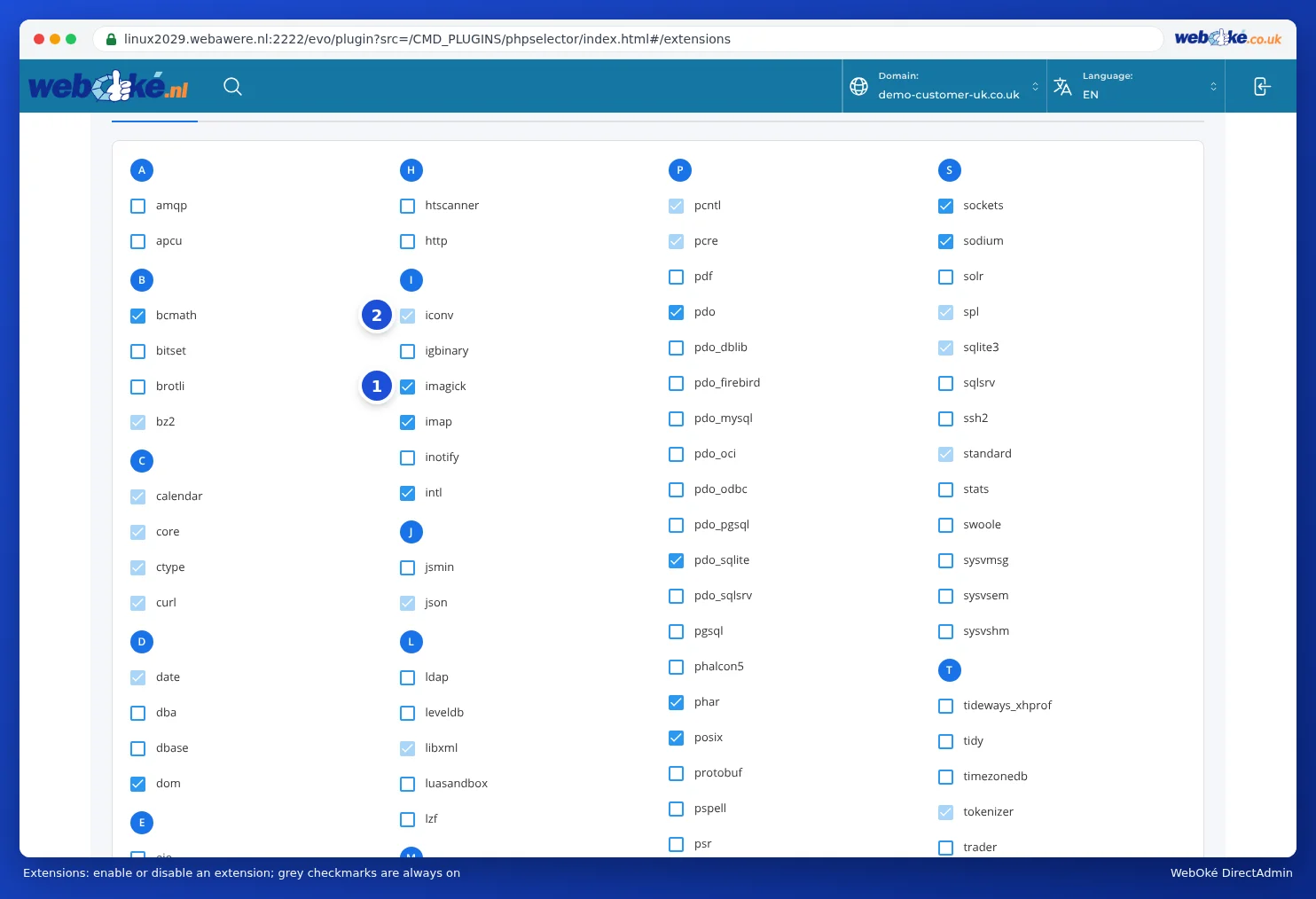
imagickorgd. Turn these on in Select PHP version on the Extensions tab. Read Turning PHP extensions on and off. - The firewall is blocking the upload. If you get a 403 error when uploading, the Imunify360 firewall may be blocking the request. Read Imunify360: scanning your website for malware. If you can't access your site at all anymore, check whether your IP address has been blocked: Am I blocked? Your IP address and our firewall.
Also see in the DirectAdmin manual: PHP Settings in DirectAdmin or Select PHP version: what's the difference? and Upload too large (error 413) or time-out.
Detailed explanation with screenshots: PHP options: upload_max_filesize, memory_limit and max_execution_time in the DirectAdmin manual.