
Error 500 or "critical error" on your website (also after a WordPress update)
Do you see a white screen, 500 Internal Server Error or, with WordPress, There has been a critical error on this website? Then your website's code is getting stuck. The server itself is usually fine. With the steps below, you can find the cause yourself in most cases.
First: what just changed?
A 500 error almost never comes out of nowhere. Did you just update a plugin, theme or WordPress, change the PHP version or edit something in .htaccess? Then first undo exactly that change. That's usually the quickest fix.
Check the error log
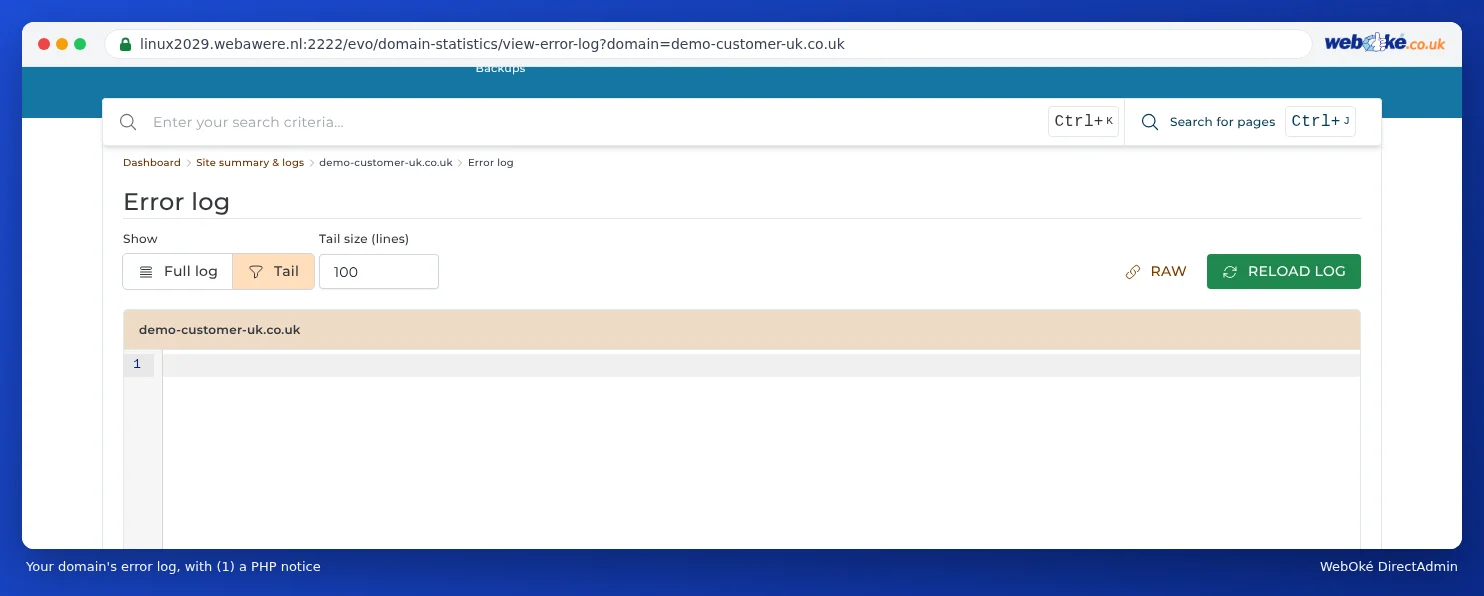
The error log tells you which file and which line is causing the error. Log in to DirectAdmin and open System Info & Files › Site Summary & Logs. Choose your domain and open the error log. The bottom lines are the newest. If you see, for example, PHP Fatal error with a path to wp-content/plugins/plugin-name, then you know which plugin is the culprit.
WordPress: critical error after an update
After updating a plugin, theme or WordPress itself, this is by far the most common cause. If you can no longer access the WordPress admin, proceed as follows:
- Check your mailbox. When a critical error occurs, WordPress often sends an email to the admin address with a link to recovery mode. This lets you log in while the faulty plugin or theme is temporarily disabled, so you can turn it off or revert it yourself.
- No email? Disable the plugins via DirectAdmin. Open File Manager and go to
domains/yourdomain.com/public_html/wp-content. Rename thepluginsfolder to, for example,plugins-off. WordPress will then disable all plugins. - Is your site working again? Rename the folder back to
pluginsand turn the plugins back on one by one in WordPress until the error returns. Then you'll know which one it is. If you already know from the error log, just rename the folder of that one plugin. - Is it the theme? Then rename the folder of your active theme in
wp-content/themes. WordPress will fall back to a default theme, if one is still installed. - Did you just change the PHP version? Revert it in Select PHP version. Read Changing the PHP version and PHP settings.
Go back to a working version
Can't figure it out and was the site working yesterday? Then restore a backup.
- WebOké Backups: in My WebOké you choose a point in time from before the error and restore only the folder of your website and, if needed, the database. Read WebOké Backups: viewing, restoring or downloading a backup.
- Installatron: if Installatron made a backup before the update, you can restore it under My Backups. Read Creating and restoring backups in Installatron.
Check your .htaccess
One incorrect line in .htaccess immediately causes a 500 error for the entire site. A well known example is a line left behind by a security plugin, such as php_value auto_prepend_file with a path to a file that no longer exists.
- In DirectAdmin, open System Info & Files › File Manager.
- Go to
domains/yourdomain.com/public_html. Don't see a .htaccess file? Files that start with a dot are hidden. Turn on showing hidden files in File Manager. - Rename
.htaccessto, for example,.htaccess-old. - Reload your website. If the error is gone, the problem is in the .htaccess file. Remove the faulty line and rename the file back.

Other causes
- Not enough memory: if the error log shows
Allowed memory size ... exhausted, increasememory_limitin Select PHP version. - Incorrect file permissions: folders should be set to 755 and files to 644.
- Storage full: if your package is full, your website can no longer write anything. Check Disk Space on the DirectAdmin dashboard.
With Domain Health you can see at a glance whether your domain, website and SSL certificate are all in order.
Also see in the DirectAdmin manual: Showing and editing hidden files such as .htaccess and Site Summary and Logs: the error log and the access log.
Detailed explanation with screenshots: My website is white or shows a 500 error in the DirectAdmin manual.